


What you need to know about Product Listing Ads to grow your revenue

E-commerce success depends on attracting new customers to an online store. Product Listing Ads are one of the leading sources of that traffic.
Since their launch in 2010, these ads have become increasingly popular.
What Are Product Listing Ads?
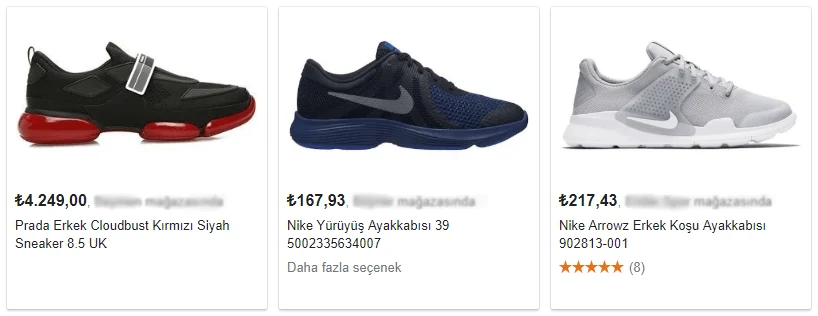
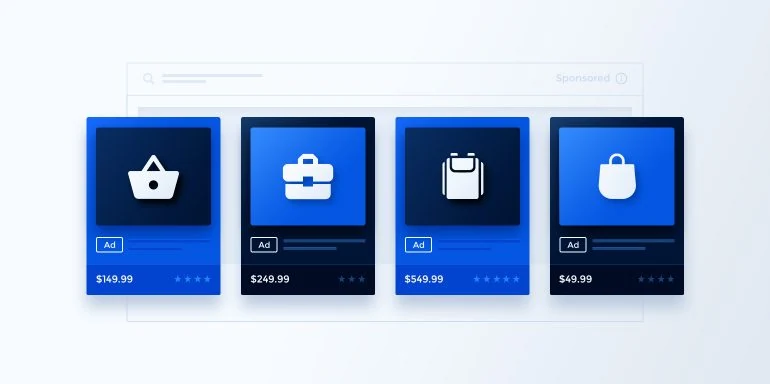
Product Listing Ads, or Google Shopping ads, can promote online and local inventory, increase website traffic and find potential customers. They are widely used by e-commerce businesses. You upload product information through Merchant Center and create a campaign in Google Ads. Unlike text ads, Shopping ads display a product photograph, title, price, store name and other details.
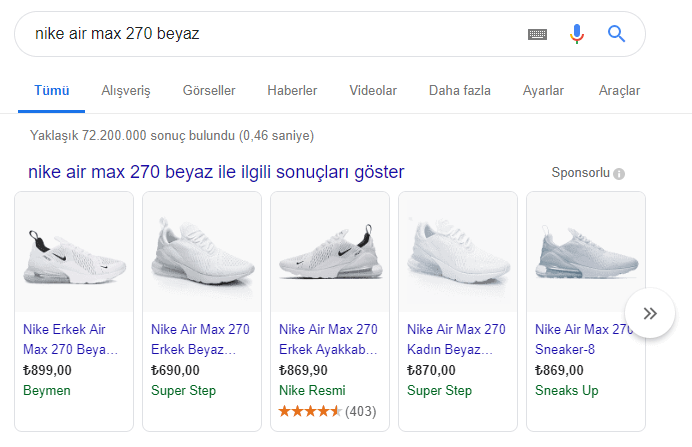
Unlike other Google ads, they are organized around products and categories rather than keywords. They appear above text ads and search results; some desktop placements occasionally appear on the right.
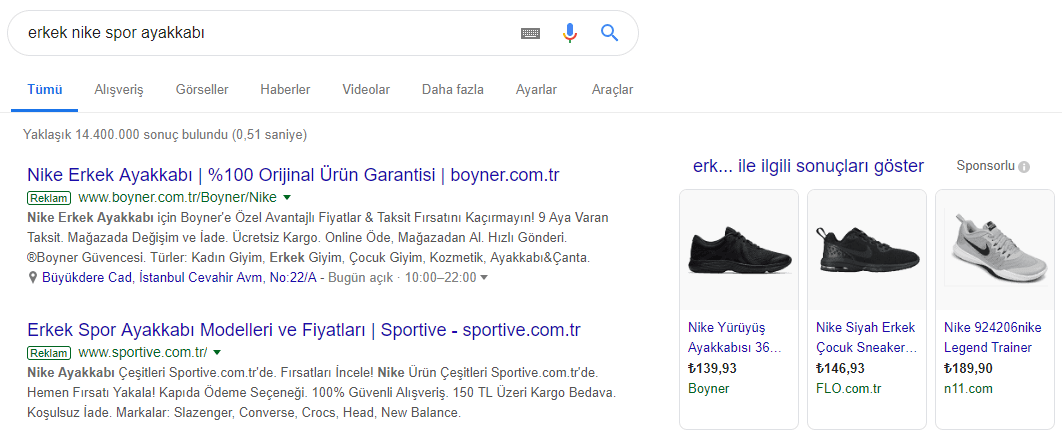
To the right of text ads and results, except on mobile:
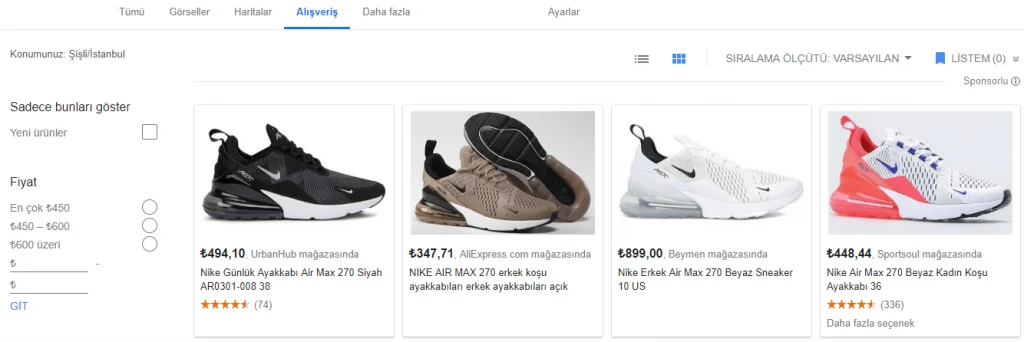
In the Shopping tab:
They can also appear on Google Search partner sites, including YouTube, and on the Google Display Network for local catalog ads only.

Why Use Product Listing Ads?
Google Shopping dominates other product-shopping channels. In the first quarter of 2017, it represented 52% of retailers’ click share. For non-brand searches, Google Product Listing click-through rates were observed to reach 75%.
More Traffic
For shopping-related searches, many businesses achieve much higher click-through rates with Product Listing Ads than text ads, even when the two appear side by side.
Better-Qualified Prospects
Displaying product information directly helps customers make informed purchasing decisions, improving lead quality and the likelihood of purchase.
Someone searching for a laptop, for example, can see which models fit their requirements. More importantly, visible pricing quickly shows which fall within budget. When people click, they already understand the product and its cost, placing them further down the sales funnel.
More Visibility
Google allows multiple Product Listing Ads from one advertiser to appear for a query. A Shopping ad and text ad can also appear simultaneously, potentially doubling your presence for that search.
Detailed Reporting
Campaign reporting reveals performance at a granular level. If you sell trainers, for example, filtering the product view shows clicks for a particular brand without creating new product groups.
Despite these advantages, several factors should be considered before launching.
Product Listing Ads are not suitable for everyone. Ask the following questions:
Have You Linked Merchant Center to Google Ads?
An unlinked account is a major reason campaigns fail to serve. Google Ads builds product ads using the feed supplied to Merchant Center. If the accounts are not linked, they cannot communicate and the campaign will not run.
How Many Products Do You Sell?
If you sell more than 500 products, you may receive less visibility than brands with more than 500 products.
What Is Your Product Category?
Less competitive categories such as automotive parts, baby supplies, tools and furniture are well suited to these ads. In more competitive areas such as clothing or footwear, products outside leading brands such as Nike and Adidas may struggle. You must develop appropriate strategies for competing with larger brands.
How Many Sales Are Needed to Make a Profit?
Very tight margins can make profitability difficult or require a lower daily budget. This varies considerably with products, competition and profit margins.
Pay Attention to Website Quality
Google considers site quality and links within its algorithm when assessing the site and seller. Better websites and content therefore attract more relevant, substantial traffic.
Make Sure You Can Edit Your Data Feed Easily
Otherwise, your management options are limited. Technical tasks that require feed changes include, but are not limited to:
- Configuring your campaign
- Creating ad groups for bestsellers, products below a particular price, seasonal items and similar groups
- Updating or changing sales information for the campaign
- Resolving validation errors when creating ad groups
- Preventing disapprovals caused by missing or incorrect feed items
If, after considering these points, you decide to use Product Listing Ads, you need to understand how to optimize them.
Getting the Most from Product Listing Ads
1. Segment Product Groups
The default setting is All Products. Just as you would not use the same bid for every keyword, you should not necessarily bid the same amount for every product. Create distinct groups using a layered hierarchy.
Begin with broad divisions such as product type and category. With enough data and a need for more detail, continue subdividing through the same or more specific attributes.
- Give your bidding system more data to manage optimization effectively.
- Avoid wasting spend on out-of-stock or low-performing product IDs and small groups.
- Improve visibility in performance reporting.
- Balance and control bidding management and objectives.
- Simplify account management.
2. Create Brand and Non-Brand Campaigns
Separating these helps maximize traffic when people search for branded products.
- Create two Shopping campaigns.
- Add brand terms as negative keywords to the non-brand campaign.
- Set the brand campaign’s priority to Low.
This generally supports appropriate budgeting and bidding for brand and non-brand searches.
3. Optimize the Feed
The subject could fill a longer list, but three short recommendations are particularly important:
- Include the brand in the product title to benefit from its recognition.
- Use the most specific Google Product Category available to improve matching and CTR.
- Use custom labels to classify products further by marketing goals such as return on investment and price range.
Review Merchant Center Regularly
Merchant Center reports feed warnings, errors and policy violations, allowing prompt corrections. These fixes can be straightforward, but recognizing the alerts requires attention. Regular reviews and corrections keep products active and maintain a high data-quality score with Google.
Add Enhancements to Your Ads
Explore enhancements that can help your advertising attract attention.
- Offer special promotions that appear alongside the ad. There is no additional cost.
- Use product ratings. These provide important purchasing information and can build confidence. They appear as a five-star rating with the total review count. A product needs at least three reviews to qualify.
- Google Customer Reviews: Seek valuable feedback from people who have purchased from your website.
Note: Choosing an enhancement does not guarantee that it appears with every impression.
Product Listing Ads can create a strong online presence and help win customers during product searches. Follow the relevant requirements and practices to appear ahead of more competitors.
Product Listing Ad Specifications
Google’s requirements encourage advertisers to make every submitted data item match the quality presented to users.
ID
- Required: The product’s unique identifier
- Syntax: Up to 50 characters
- Schema.org property: Product.sku
- Use a unique value for each product, preferably its SKU.
- Keep the ID unchanged when updating data.
- Use valid Unicode characters only; avoid invalid control, function or private-use characters.
- Use the same ID across countries and languages for the same product.
SKU means Stock Keeping Unit and is described as a product type in Microsoft terminology.
Title
- Required: Product name
- Syntax: Up to 150 characters
- Schema.org property: Product name
- Match the title on the landing page and describe the product accurately.
- Do not include promotional wording such as “free shipping,” all-capital text or unusual foreign characters.
- For variants, include a distinguishing attribute such as color or size.
Description
- Required: Product description
- Syntax: Up to 5,000 characters
- Schema.org property: Product.description
- Match the landing-page title and describe the product accurately.
- Do not include promotions such as “free shipping,” all-capital text or unusual foreign characters.
- Include only product-related information, not store links, sales details, competitor information, other products or accessories.
- Use formatting such as line breaks, lists or italics.
Link
- Required: The product landing page
- Schema.org property: Offer.url
- Use your verified domain beginning with https.
- Use an encoded URL compliant with RFC 2396 or RFC 1738.
- Do not link to an interstitial unless necessary.
- Use a domain tracking URL if necessary; too many redirects can increase delay.
Image
- Required: The main product image
- Accepted formats: Non-animated GIF (.gif), JPEG (.jpg/.jpeg), PNG (.png), BMP (.bmp) and TIFF (.tif/.tiff)
- Non-apparel products: At least 100 × 100 pixels
- Apparel: At least 250 × 250 pixels
- Size: A maximum of 64 megapixels or 16 MB file size
- Do not upscale images or submit thumbnails.
- Promotional text, watermarks and borders are not allowed.
- Do not use placeholder or generic images, except for:
- Hardware or Vehicles & Parts categories, where illustrations are accepted
- The Paint category, where single-color images are accepted
Image Link
- Required: The main product image URL
- Schema.org property: Product.image
- Link to the main image of the product.
- Begin with http or https.
- Use an encoded URL compliant with RFC 2396 or RFC 1738.
- Make sure Google can crawl the URL, with robots.txt allowing Googlebot and Googlebot-Image.
Additional Image Link
- Optional: A URL for an additional product image
- Syntax: Up to 2,000 characters
- Follow the normal image-link requirements except that:
- The image may show product staging and the product in use.
- Graphics or illustrations may be included.
- Submit up to 10 images by adding this attribute multiple times.
Mobile Link
- Optional: Specify the mobile landing-page URL if different from desktop.
- Syntax: Up to 2,000 characters
- Follow the standard link requirements.
For step-by-step setup instructions, visit Google’s Shopping campaign support page.
INFORMATION: Another major benefit not yet mentioned is the ability to import Google Product Listing Ads easily into Bing using the Google Merchant Center Import tool.
You can get in touch for detailed information about Product Listing Ads and advertising management.



Comments